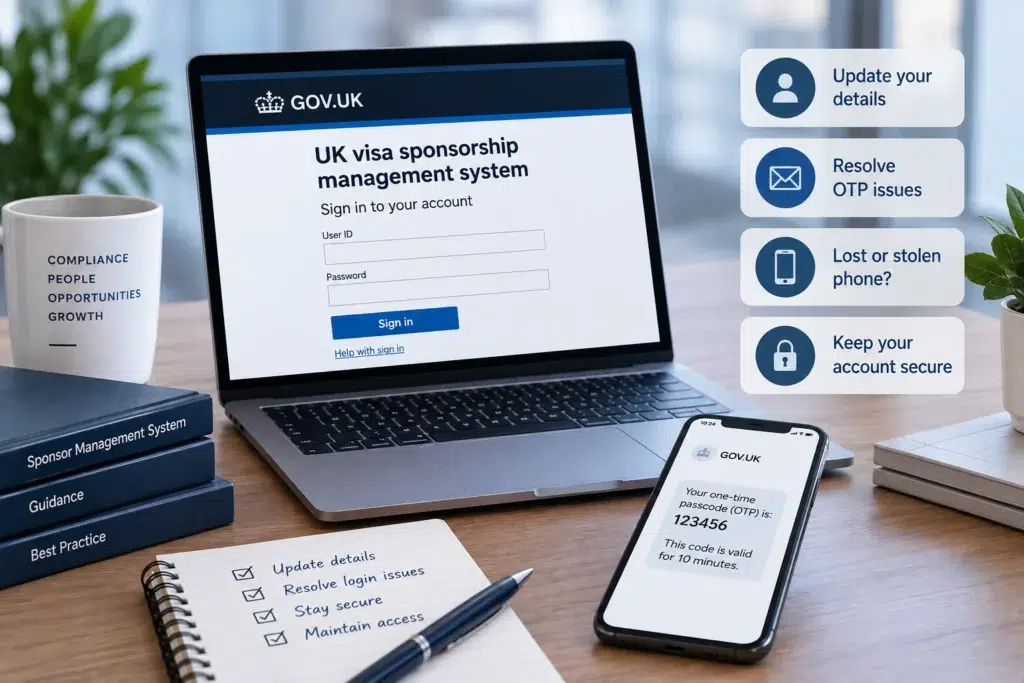


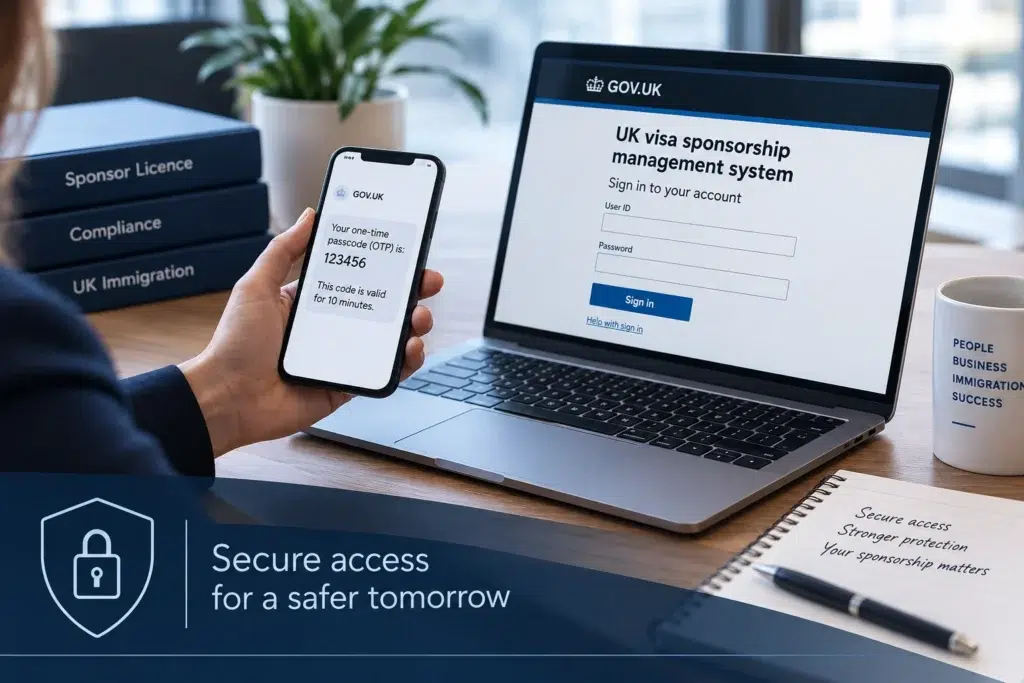
Multi-Factor Authentication (MFA) adds an additional security step when accessing the Sponsor Management System (SMS). Once MFA is enabled, SMS users continue to enter their existing user ID and password. However, they must also enter a one-time passcode (OTP) before accessing the system.
The OTP is sent to the mobile number or email address associated with the user’s SMS details. It remains valid for 10 minutes. For sponsors, understanding how this process works is important. Incorrect personal details or problems receiving an OTP could prevent a user from accessing SMS.
In Part 1, we explain the first-time MFA login process for Level 1 and Level 2 Users.
What Do You Need to Log In Using MFA?
When MFA is enabled, Level 1 and Level 2 Users will need:
- their SMS user ID;
- their password; and
- a one-time passcode.
Level 1 Users may also need to provide their date of birth. The OTP will be sent to the mobile number or email address registered during the MFA process. It must then be entered into SMS to complete the login.
Once MFA has been activated on a sponsor licence, an OTP will be required each time a user logs into SMS.
Starting the MFA Login Process
The process begins on the SMS login screen. Enter your Level 1 or Level 2 User ID and password.
If a Level 1 User has forgotten or not received their user ID, they should ask their Authorising Officer. The Level 1 User ID can be found in the Decision Letter.
Where there is another Level 1 User on the licence, they can find the relevant user ID through the Manage Level 1 and 2 users section of SMS.
The next stage depends on whether the OTP will be received by mobile phone or email.
Receiving an OTP by Mobile Phone
The mobile OTP process applies to Level 1 Users. You will first need to select the appropriate country code. You can then enter your mobile number and select Next. It is important to check the number carefully before continuing.
If you have already registered a mobile number for MFA, SMS will display its last four digits. If those digits are incorrect, you can amend the number.
You may then be asked to enter your date of birth. The date must match the date of birth recorded within your Level 1 User details.
If you have already registered a mobile number and do not amend it, you may not be asked for your date of birth.
Check Your Date of Birth Carefully
Where SMS asks for your date of birth, all fields must be completed correctly. You have three attempts to enter the correct date of birth.
If you enter it incorrectly three times, your account will be locked for 24 hours. This makes it particularly important for Level 1 Users to ensure their personal information is accurate.
Requesting Your OTP
After completing the date of birth check, SMS will display a summary page. This shows the mobile number where the OTP will be sent. You can still amend your mobile number at this stage.
Once the information is correct, select Request OTP. A text message from GOVUK will contain a six-digit passcode. You should allow up to one minute for the message to arrive.
Enter the OTP into SMS and select Submit. The OTP remains valid for 10 minutes. If it expires, select Request new OTP to receive another code.
Never provide an OTP to another person. If you receive an OTP when you are not trying to access SMS, do not share it. The same applies if someone contacts you asking for the code.
The matter should be reported to [email protected].
Receiving an OTP by Email
There is also an email route for receiving an OTP. This applies to Level 2 Users and Level 1 Users without a mobile telephone.
From the MFA mobile number summary screen, select Amend. When the mobile number screen appears, select I don’t have a mobile number. SMS will then display the email address associated with your account.
If the address is correct, you can request an OTP. If the email address is incorrect or you do not recognise it, the next steps depend on your user level.
Level 1 Users can amend their email address during the process. Level 2 Users cannot amend their own email address. A Level 1 User must make the necessary amendment.
Receiving the Email Passcode
Once the correct email address has been confirmed, select Request OTP. A six-digit OTP will be sent by email from GOVUK. You should allow up to one minute for it to arrive. Enter the six-digit passcode into SMS and select Submit. As with an OTP sent by text message, the code remains valid for 10 minutes.
If it has not arrived after one minute, check that the correct email address has been entered. You can then request another OTP where necessary. After successfully entering the OTP, you will be redirected to the SMS home screen. You can then view your licence summary and undertake your sponsorship duties.
MFA Does Not Change How Sponsors Use SMS
MFA affects the login process rather than the functions available within SMS. Users still sign in with their existing user ID and password. The additional requirement is the one-time passcode.
Once authentication has been completed, users can continue using SMS in the usual way. However, sponsors should make sure the personal details connected to their SMS users remain accurate.
Incorrect mobile numbers, email addresses or dates of birth can cause problems during authentication.
In Part 2, we explain how to amend these details and what to do when an OTP does not arrive or an account becomes locked.
How Morgan Smith Immigration Can Help
Sponsor Management System access is an important part of managing a sponsor licence and meeting sponsorship duties.
Sponsors should ensure their SMS users understand the MFA process and keep their registered information accurate.
Follow Morgan Smith Immigration for updates on sponsor compliance, Sponsor Management System requirements and UK immigration law.
Morgan Smith Immigration has more than 20 years of experience in UK immigration matters and remains committed to providing professional immigration advice.
For advice on sponsor licence compliance and sponsorship matters, contact Morgan Smith Immigration on 0203 959 3335 or email [email protected].