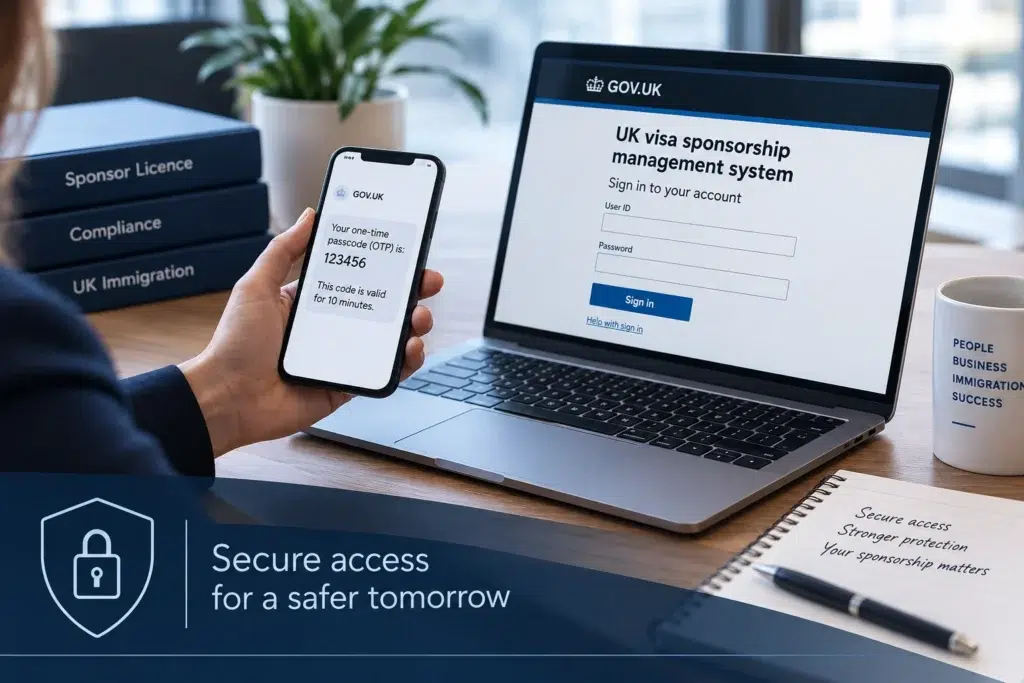


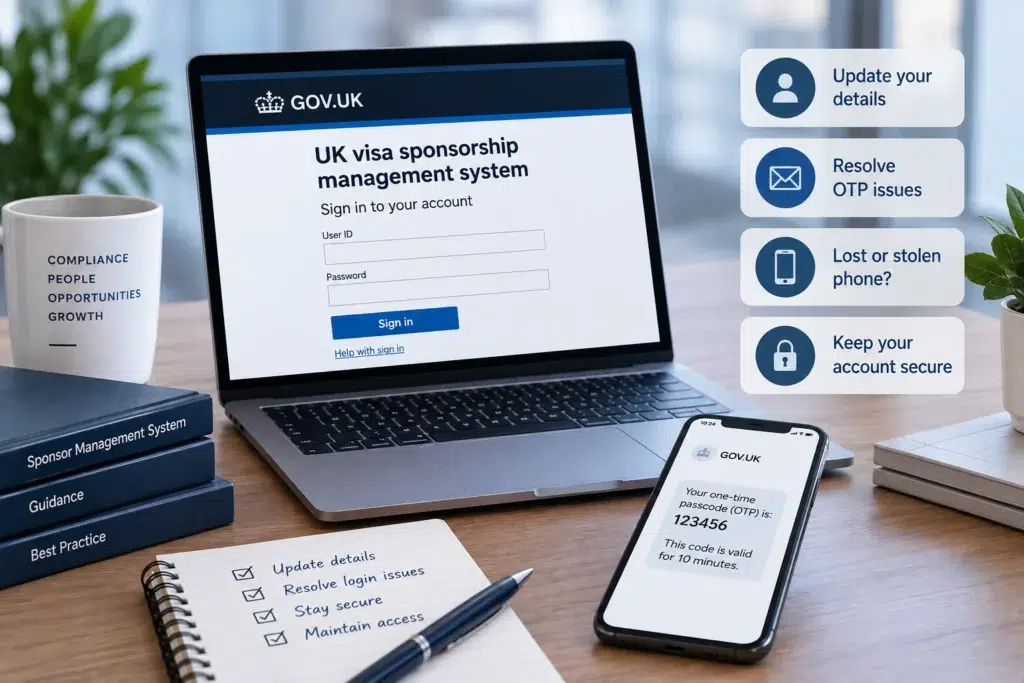
SMS MFA login problems can arise when users confirm their identity using a one-time passcode to access the Sponsor Management System.
Incorrect registered details, an OTP not arriving or repeated incorrect attempts can prevent users from completing the login process. In some cases, users may also face temporary account lockouts.
In Part 2 of our SMS MFA guide, we explain how to change registered details, request another OTP and resolve common access problems.
How Can a Level 1 User Change Their Mobile Number?
Level 1 Users can amend the mobile number used for MFA. Start by entering your Level 1 User ID and password on the SMS login screen. SMS will display the last four digits of the mobile number registered on the licence.
Check these digits carefully. If they are incorrect, select Amend. Choose the correct country code and enter the mobile number where you want to receive your OTP.
You will then need to enter your date of birth. It must match the date recorded within your Level 1 User details.
There are three attempts to enter the date correctly. Three incorrect attempts will result in the account being locked for 24 hours. Once the details have been confirmed, select Request OTP.
A six-digit passcode will be sent by text message from GOVUK. Enter the passcode into SMS and select Submit. After successfully logging in, you will be taken to the SMS home screen.
An automated email will also confirm that your mobile number has been changed.
How Can an Email Address Be Changed?
A Level 1 User can also amend an email address through the MFA process. After entering your Level 1 User ID and password, SMS will display the email address associated with the account.
If the address is incorrect, select Amend and enter the correct email address. The email address must be entered correctly before continuing.
You will also need to provide your date of birth. Again, this must match the information stored within the Level 1 User details.
Once the email address has been confirmed, select Request OTP. After receiving the passcode, enter it into SMS and select Submit. An automated email will confirm when the email address has been changed.
Can Level 2 Users Change Their Email Address?
Level 2 Users cannot amend their own email address. If a Level 2 User’s email address is incorrect, a Level 1 User must make the amendment.
This is particularly important because an incorrect email address may prevent the Level 2 User from receiving their OTP and accessing SMS.
What Happens if Your Date of Birth Does Not Match?
A Level 1 User’s date of birth must match the information stored on the sponsor licence. If an invalid date is entered, SMS will display an error message. If the date is valid but does not match the records, another error message will appear.
You have three attempts to enter the correct date of birth. After three failed attempts, the account will be locked for 24 hours. You can try logging in again after the 24-hour period.
If the date of birth is still incorrect, you must complete the MFA manual change of circumstances form to update it.
Correcting an Incorrect Date of Birth
If the date of birth recorded on SMS is incorrect, the Sponsor Change of Circumstances form must be used.
For date of birth changes, the information provided states that users should:
- select Appoint a new Level 1 User in Section A;
- complete Section B with the sponsor licence details;
- provide the required personal details in Section C;
- complete Section G; and
- email the completed form to [email protected].
The email should use the subject heading DOB change request.
Level 1 Users should therefore check their recorded date of birth before they encounter problems accessing SMS.
What Should You Do if an OTP Does Not Arrive?
First, allow up to one minute for the OTP to arrive. If it does not arrive, check the mobile number or email address entered during the login process.
For mobile numbers, the country code should also be checked. If the information is incorrect, amend it before requesting another OTP. If the details are already correct, select Request New OTP.
The option to request another OTP only becomes available after one minute. Do not refresh the page while waiting. Refreshing it will reset the timer.
What Happens if You Enter the Wrong OTP?
An OTP remains valid for 10 minutes.
If an incorrect OTP is entered, SMS will display an error message. You can then enter the correct passcode and submit it again. You have three attempts to enter a valid OTP.
After three incorrect attempts, you will need to request a new OTP. The Request New OTP option can only be selected twice.
If you exceed the limit for OTP requests or incorrect attempts, the account will be locked for 20 minutes. You can try to log in again after this period.
What if Your Mobile Phone Is Lost or Stolen?
Losing access to your registered mobile telephone does not necessarily prevent you from receiving an OTP. You can receive the OTP by email instead. This allows you to access your account securely.
However, the lost or stolen mobile number should be removed from the SMS account as soon as possible.
What if You Are Overseas and Cannot Receive the OTP?
SMS users travelling abroad may experience difficulties receiving an OTP by text message. If you cannot receive the text while overseas, you can use the email option instead.
This allows you to continue accessing your SMS account securely.
Be Careful With Unexpected OTP Requests
An OTP should never be shared with another person. If you receive an OTP when you are not attempting to log into SMS, do not provide the code to anyone.
The same applies if somebody contacts you and asks you to provide the OTP.
Concerns about suspicious activity or a potentially compromised SMS account should be reported to [email protected].
Getting Help With MFA Problems
For questions relating to MFA or assistance with accessing SMS, the information provided directs users to:
The organisation name and sponsor licence number should be included in the email subject heading.
If the problem relates to receiving an OTP, users should provide:
- a detailed description of the issue;
- the mobile service provider;
- the mobile number;
- the date the OTP was requested; and
- the time the OTP was requested.
Providing these details can help the Business Helpdesk understand the problem being reported.
How Morgan Smith Immigration Can Help
Managing access to the Sponsor Management System forms part of the wider responsibility of operating a sponsor licence.
Sponsors should ensure their key personnel can access SMS when required and understand the processes that apply when login problems arise.
Follow Morgan Smith Immigration for updates on sponsor compliance, Sponsor Management System requirements and UK immigration law.
Morgan Smith Immigration has more than 20 years of experience in UK immigration matters and remains committed to providing professional immigration advice.
For advice on sponsor licence compliance and sponsorship matters, contact Morgan Smith Immigration on 0203 959 3335 or email [email protected].